

GitHub
All our OpenSource projects have been migrated to GitHub.
Feel free to fork!
Feel free to fork!
Tutorial
This tutorial will teach you how to use the OpenCV library with iPhone or iPad applications.
It is based on the XCode project file for iPhone, available from the download section.
It is based on the XCode project file for iPhone, available from the download section.
Table of contents
1. XCode project
This port consist of a ready-to-use XCode project, including OpenCV as a static library, linked with the application main's target.
The XCode project has been created using the «View-based application» preset, but you can customize it to create any kind of application.
Note that when building your application for the iPhone (or iPad) simulator, you may see some warnings from the linker, like:
ld: warning: can't add line info to anonymous symbol cstring ...
This only affects the simulator builds, and it won't affect your OpenCV usage, even in the simulator.
2. Targets
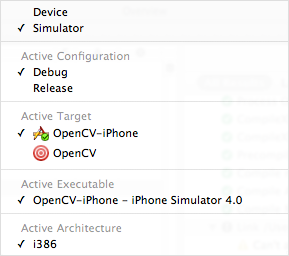
Two build targets are available:
The first one is of course the application's target, that you will use to build and test your iOS application.
The second one is the target used to build the OpenCV library.
The second one is the target used to build the OpenCV library.
The XCode project already includes a compiled version of the OpenCV library, so you can start developping your application right-away, without compiling OpenCV.
3. Header files
The path to the OpenCV header files has been added to the XCode project's settings, so you can include them just like system incudes (<filename.h>).
Note that the OpenCV main header files is included in the project's pre-compiled header files.
It means that the OpenCV function are available to use, without including the «opencv/opencv.h» header file.
It means that the OpenCV function are available to use, without including the «opencv/opencv.h» header file.
#ifdef __OBJC__ #import <Foundation/Foundation.h> #import <UIKit/UIKit.h> #import <opencv/cv.h>#endif
4. Files & directories
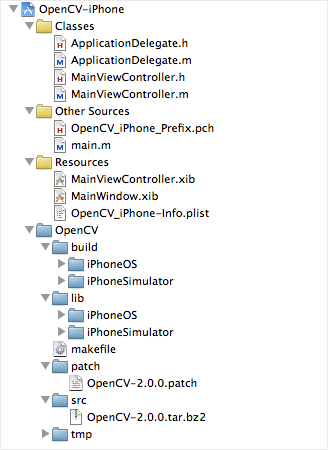
The XCode project contains a separate directory for the OpenCV files. That directory contains the full OpenCV sources, that are decompressed in the «tmp» directory during the build process.
All build files are placed in the «build» directory, which contains a directory for the iPhone OS build files, and another one for the iPhone simulator build files.
The final libraries and OpenCV support files are placed under the «lib» directory. Here again, there's a directory for the iPhone OS, and another one for the iPhone simulator.
The build process is controlled by a custom makefile, invoked from the XCode target.
You may modify the makefile to adapt the OpenCV build, or to port other versions. It's well documented, so it shouldn't be that hard. : )
Also note the patch directory. It may contains patches for the OpenCV sources.
The name of the patch file must correspond to the OpenCV version that will be built.
The name of the patch file must correspond to the OpenCV version that will be built.
Actually, a small patch is made, to prevent a fatal build error. It just replaces a «double» datatype with an «int» one, to fit iOS structures.
5. Building OpenCV
Although the XCode project already includes a compiled version of the OpenCV library, you may switch to the «OpenCV» target to build it again.
The makefile will automatically build two versions of the library. The first one for iOS, the second one for the simulator.
Building the OpenCV library is a long process. So we recommend you not to set the «OpenCV» target as a dependancy of your main application target. This will save some compilation time.
When building OpenCV, you may see some warnings and errors, but they shouldn't prevent the library to be built.
When building OpenCV, you may see some warnings and errors, but they shouldn't prevent the library to be built.
You may check if everything went well by looking for the «libcv.a» file (the library itself), in the «OpenCV/lib/iPhoneOS/lib/» directory.
6. XCode build settings
Here's the aplication's build settings that allows the use of the OpenCV library.
No other settings were touched, so you can customize them as usual.
No other settings were touched, so you can customize them as usual.
Other linker flags
Those settings will link the main application with the C++ standard libraries, and with the OpenCV core libraries.
Any iPhone OS device
-lstdc++-lz"$(SRCROOT)/OpenCV/lib/iPhoneOS/lib/libcv.a""$(SRCROOT)/OpenCV/lib/iPhoneOS/lib/libcxcore.a"
Any iPhone OS simulator
-lstdc++-lz"$(SRCROOT)/OpenCV/lib/iPhoneSimulator/lib/libcv.a""$(SRCROOT)/OpenCV/lib/iPhoneSimulator/lib/libcxcore.a"
Header search paths
Those settings will make the OpenCV header files available for the XCode project, as standard system includes.
Any iPhone OS device
"$(SRCROOT)/OpenCV/lib/iPhoneOS/include/opencv/""$(SRCROOT)/OpenCV/lib/iPhoneOS/include/"
Any iPhone OS simulator
"$(SRCROOT)/OpenCV/lib/iPhoneSimulator/include/opencv/""$(SRCROOT)/OpenCV/lib/iPhoneSimulator/include/"